
The Shopify Partner Dashboard tells you how many stores installed your app this week. It doesn't tell you who runs those stores, whether anyone on your team has spoken to them, or which of last month's installs quietly uninstalled. You can't follow up with a number.
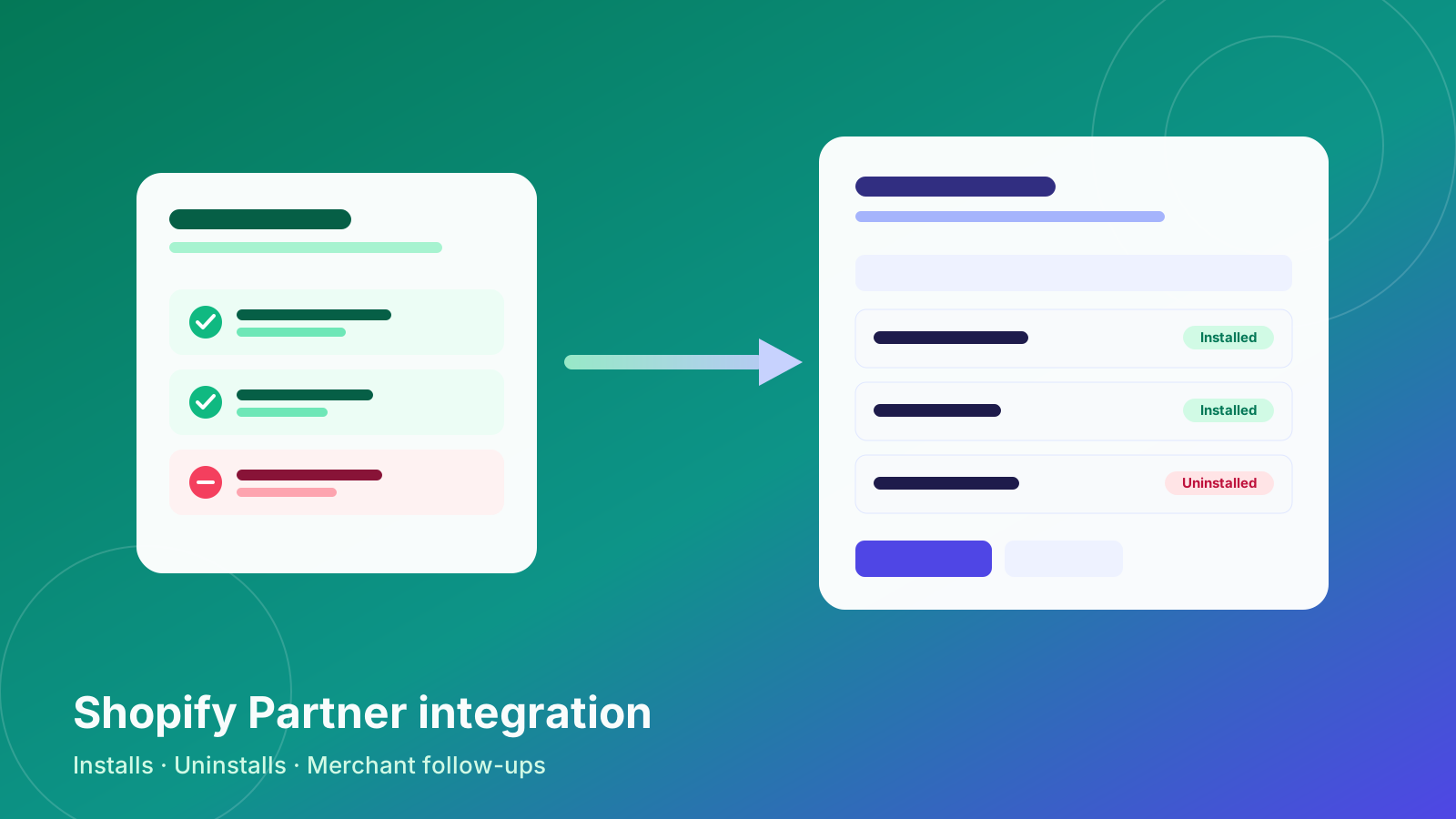
This release makes Alliances PRO a CRM for Shopify app developers. Connect your Shopify Partner account and every store that installs your app appears in your CRM as a merchant. Every uninstall is flagged, and your team gets the tools to follow up with both.
The timing matters for many app teams. Mantle (HeyMantle) shut down most of its services on August 14, 2026, and plenty of developers are now looking for a Mantle alternative for the relationship side of their work. To be clear about scope: Alliances PRO is not a billing or MRR-analytics tool. It's the CRM and follow-up layer. Every install goes into your CRM, uninstalls are flagged, and merchants get followed up.
Here's what shipped on September 21.
1. Connect your Shopify Partner account
Go to Settings → Shopify → Shopify Partner connection and paste two values:
- Partner ID: find it in your Partner Dashboard under Partner settings → Account information.
- Partner API access token: create it under Partner settings → Partner API clients with the Manage apps permission. It starts with
prtapi_. You don't need the "View financials" permission.
Click Test connection to check both values before you save. After that, install and uninstall events sync on their own about every 15 minutes. The Shopify Partner API doesn't send webhooks, so Alliances PRO checks it on a schedule and picks up where it left off each time. Nothing gets counted twice.
Why it matters: A Shopify Partner CRM is only useful if the data arrives without anyone copying it over. Connect once and new installs keep showing up on their own.
2. Add your apps to the app catalogue
Once you're connected, add each app you want to track. You'll need its App ID, which is the last number in the app's Partner Dashboard URL: partners.shopify.com/<partner-id>/apps/<app-id>. You can also paste the whole URL and Alliances PRO pulls the ID out for you.
You can add the app's App Store listing URL (apps.shopify.com/your-app) too, and the listing details sync from it.
Every Shopify workspace now has an Apps menu with a page for each app. Before you add your first app, the Apps page shows a "Connect your Partner account" prompt, so it's clear what to do next.
Why it matters: If you run more than one app, you can see each app's merchants separately and don't have to sort them out of one long list.
3. A CRM for Shopify app developers: every install becomes a merchant
Every store that installs one of your apps is added to Companies as a merchant. When a store uninstalls, its status changes to Uninstalled. This part works with no code changes in your app.
Each store is matched by its myshopify.com domain, so a store that installs, uninstalls and installs again stays one company with one history. The Companies table also has a new Shopify Plan column, so you can see which merchants are on which plan.
Why it matters: You can track Shopify app installs and uninstalls in the same place where your team plans follow-ups, without a separate spreadsheet.
4. Collect the merchant's email from your app (optional)
The Partner API tells you which store installed your app. It doesn't tell you who owns the store: no email, no phone number, no plan. Your app already has that information from its install, so it can send it to Alliances PRO once per install.
To set this up:
- Go to Settings → Shopify → Merchant email collection and create an ingest token. It's shown once, so copy it. Regenerate token cancels the old one right away if you ever need to swap it.
- Add one POST request to your app's OAuth callback. Settings shows ready-to-copy snippets for Remix/Node and Laravel, with your workspace URL and token already filled in.
- If you like, point your app's Shopify webhooks at Alliances PRO for instant uninstalls and contact updates. Alliances PRO checks each webhook's signature before it accepts it. Without webhooks, uninstalls still arrive with the 15-minute sync.
Already have stores that installed before you connected? Use the bulk backfill to send them all at once. If a merchant's email, phone number or country is still missing, Alliances PRO tries a limited number of times to fill it in from the store's public storefront.
Why it matters: A Shopify app merchant email is what turns an install into someone you can actually talk to. Without it, all you have is a store domain.
5. Follow up and win back uninstalled merchants
With merchants in your CRM, you can do something with them:
- Welcome and farewell emails. New installs get a welcome email and uninstalls get a farewell email, and your team is notified when a merchant uninstalls.
- Merchant audience in email campaigns. A new merchant audience panel lets you email merchants in bulk, for example every store that uninstalled in the last 30 days.
- Follow-ups and contact logs. Set a follow-up date on any company and log each time you get in touch. The Companies table has new follow-up and target columns, so you can see who's due today.
- Task reminders so a planned follow-up doesn't slip.
For privacy, contact details for merchants who uninstalled are deleted automatically after 180 days.
Why it matters: An uninstall doesn't have to be the end. A short, personal email within a day of an uninstall is often the best chance you'll get to learn what went wrong and win back uninstalled merchants.
6. Pick the workspace that fits how you work
A new onboarding screen asks what you'll use the CRM for: Shopify App Founder or Generic Sales. Shopify workspaces get the Apps menu, the Shopify settings and the Shopify Plan column. Shopify workspaces also hide WhatsApp, since merchants are reached by email.
Already have a workspace? Owners can change its type under Settings → Workspace. Switching to Shopify takes you straight to the Shopify settings. Switching away asks you to confirm and then hides the Apps menu and the Shopify Plan column. Nothing is deleted, so switching back brings everything back.
Why it matters: Each team only sees the menus and fields it uses, and you can change your mind later without losing data.
Also in this release
- Larger file uploads. Bigger files, such as lead attachments up to 20 MB, no longer fail with a vague "failed to upload" error.
- Long jobs finish. Long-running background jobs, like the Shopify sync, are no longer cut off partway and restarted.
- Better status monitoring. The health check now tests the database, cache, background workers and scheduler, and reports "down" when any of them fails.
- Cleaner breadcrumbs. Settings breadcrumbs now read properly: "General" instead of "general".
- Spanish. All the new screens are available in Spanish as well as English.
The full list is in the changelog.
Get started
Setup takes about ten minutes:
- Connect your Partner account. Follow How to Connect Shopify Partner to find your Partner ID, create an API token and test the connection.
- Add your apps. Follow Connect Shopify App to add each app by its App ID.
- Collect merchant emails (optional). Create an ingest token under Settings → Shopify → Merchant email collection and paste the snippet into your app's OAuth callback.
Your first merchants show up at the next sync.
Try it free
Alliances PRO has a 14-day free trial, and you don't need a credit card. Plans are a flat $19/month for up to 10 users or $39/month for unlimited users, never per seat.
Start your free trial and see every merchant who installs your app, in one place, before the end of the day.