Overview
When you connect your Shopify Partner account, Alliances PRO keeps track of your apps for you. Each time a store installs one of your apps, the store is added to Companies as a merchant. When a store uninstalls, its status changes to Uninstalled. You don't need to change any code in your app.
This helps because your whole merchant base sits in your CRM. You can see who is still using each app, spot stores that uninstalled, and schedule follow-ups with them, all from one place.
Before you start
-
A Shopify Partner account where you are allowed to create Shopify Apps, Shopify Themes. This is usually the account owner or an admin.
-
An Alliances PRO account set up as a Shopify app founder or Shopify agency workspace. The Shopify settings page only appears for these workspace types.
-
The Manage Shopify Apps permission in Alliances PRO. Workspace owners have it by default. Members need an owner to grant it under Settings → Roles.
Step 1: Copy your Partner ID
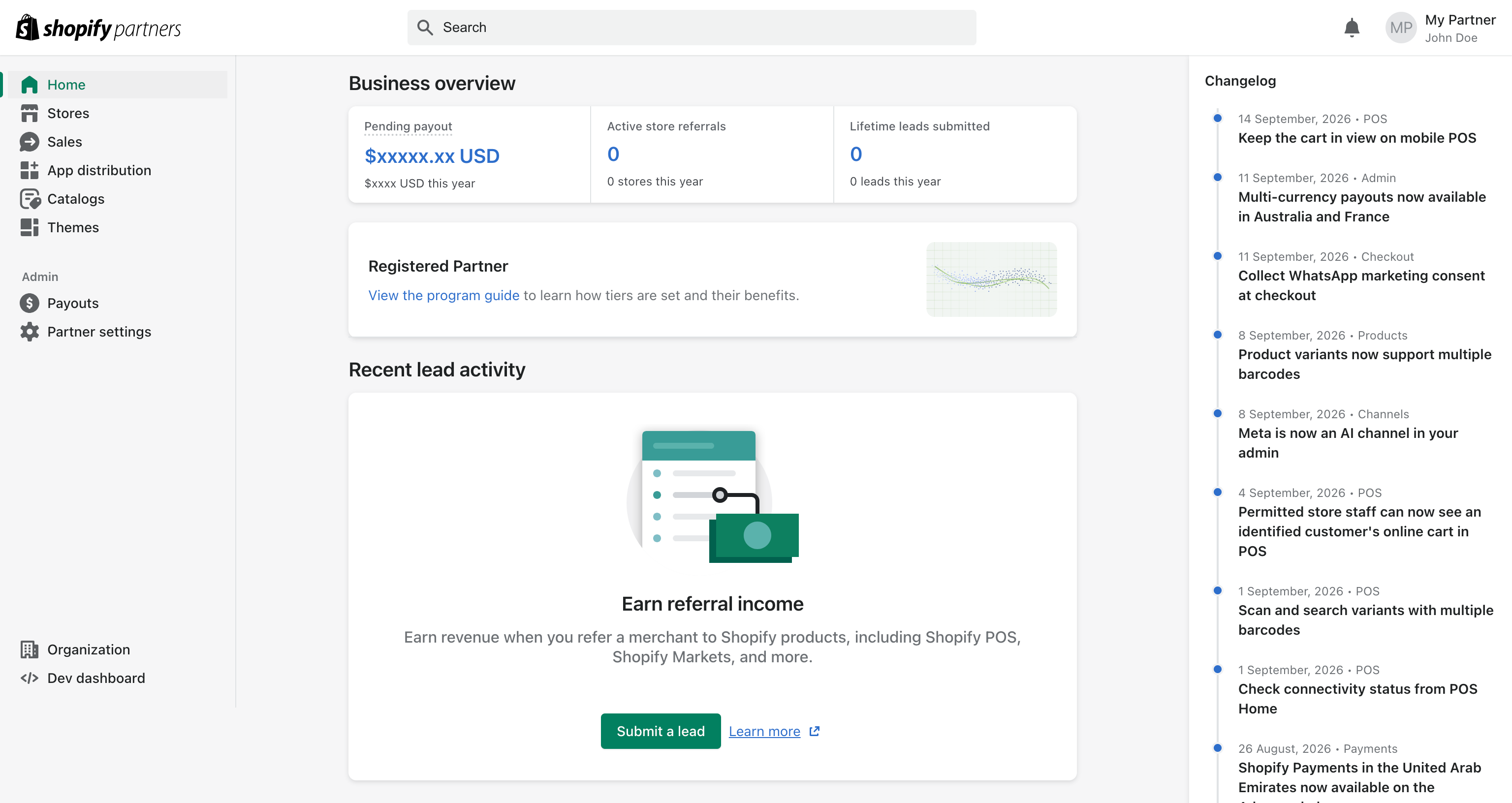
- Log in to your Shopify Partners Dashboard.
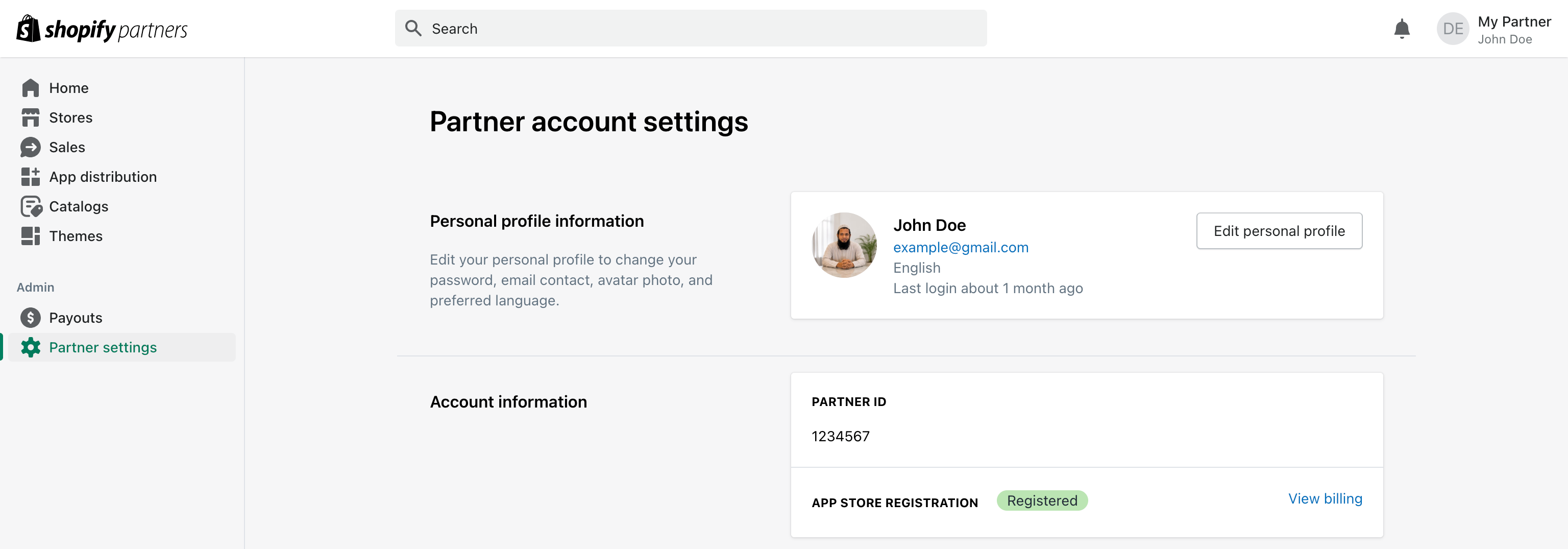
- In the left sidebar, click Partner settings.
- Under Account information, copy the number shown as Partner ID (for example,
1234567). This is the Partner organization ID you'll enter in Alliances PRO.
Step 2: Create a Partner API client and copy the access token
-
On the same Partner settings page, scroll down to Partner API clients.
-
Click Manage Partner API clients.

-
Click Create API client, give it a name (for example,
Alliances PRO), and tick the Manage apps permission. -
Copy the access token. It starts with
prtapi_and looks likeprtapi_xxxxxxxxxxxxxxxx.
Keep your access token private. Anyone with it can read your Partner data, so don't share it in email or chat.
Step 3: Connect in Alliances PRO
-
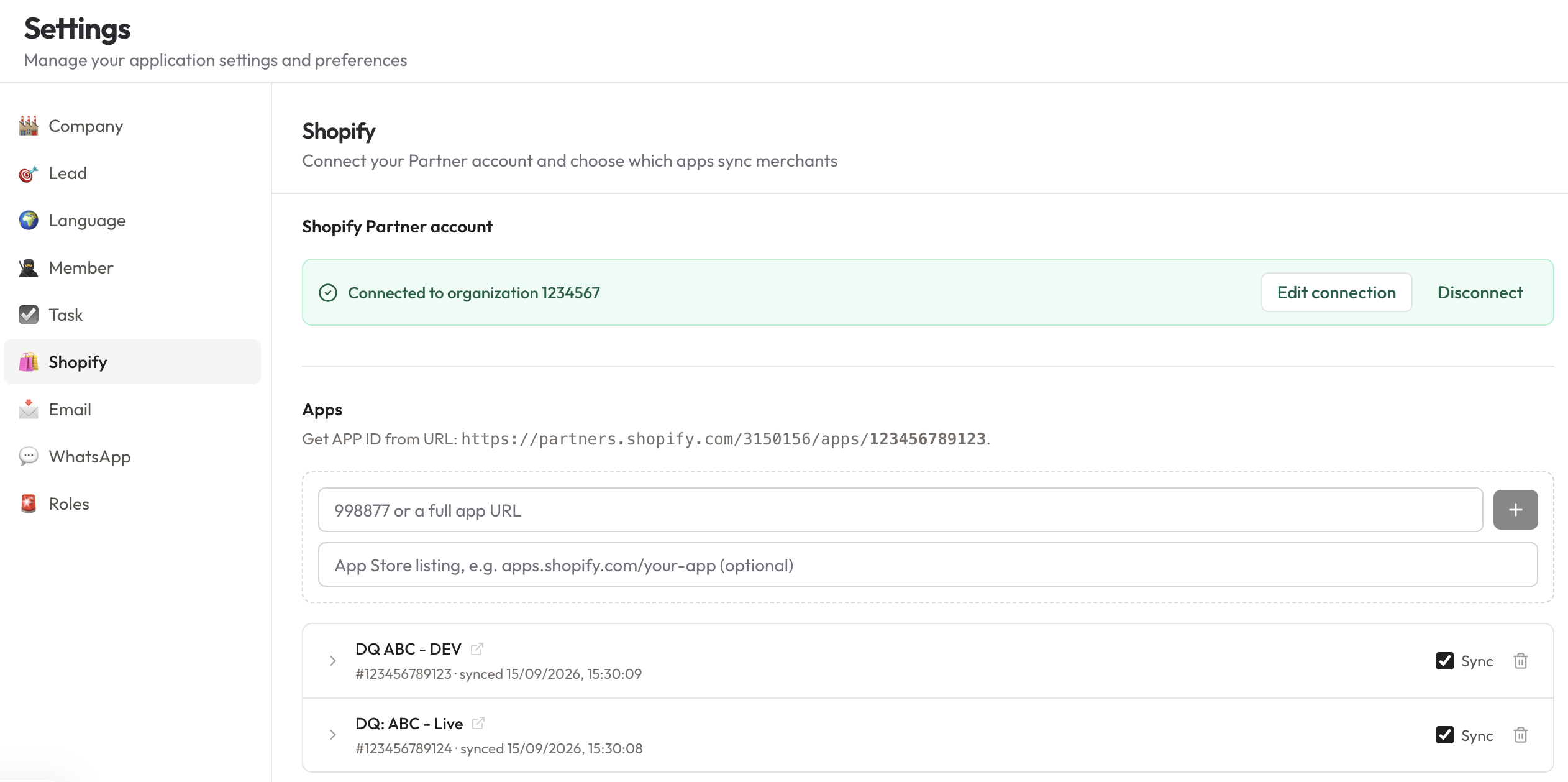
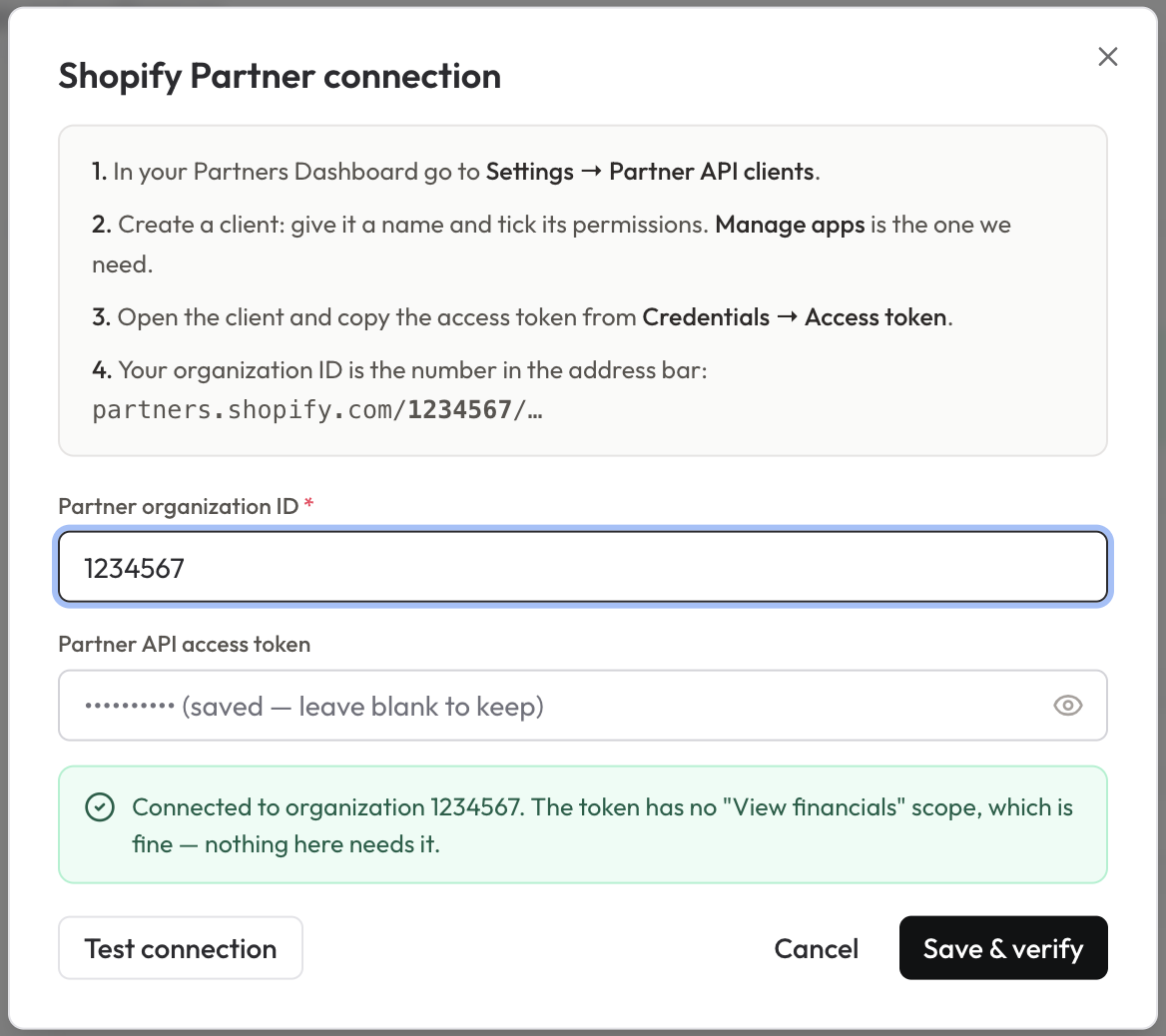
In Alliances PRO, go to Settings → Shopify and open the Shopify Partner connection window.
-
Paste your Partner ID into Partner organization ID.
-
Paste your access token into Partner API access token.
-
Click Test connection. If both values are correct, you'll see:
Connected to organization 1234567. The token has no "View financials" scope, which is fine — nothing here needs it.
-
Click Save & verify.
Step 4: Check the connection
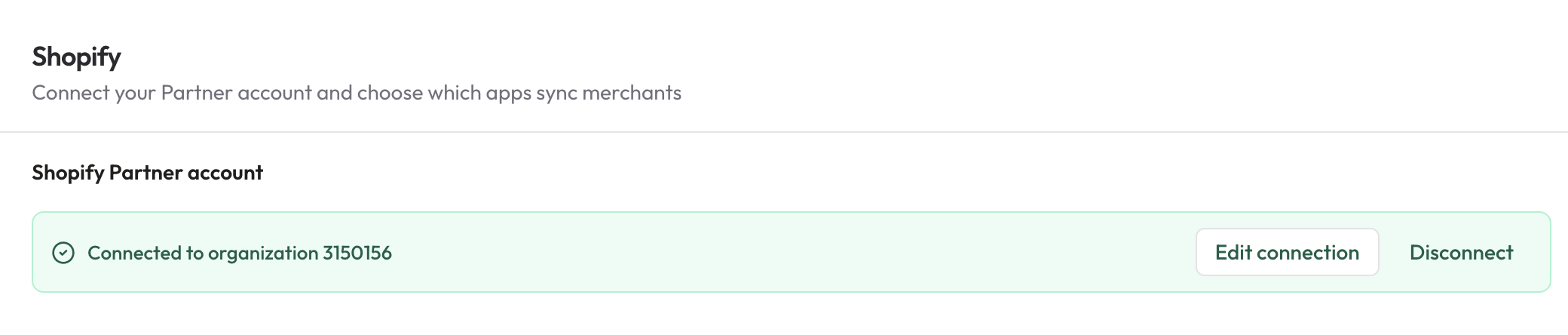
After you save, the Shopify settings page shows Connected to organization followed by your Partner ID. You can click Edit connection to change the details, or Disconnect to remove the connection.